

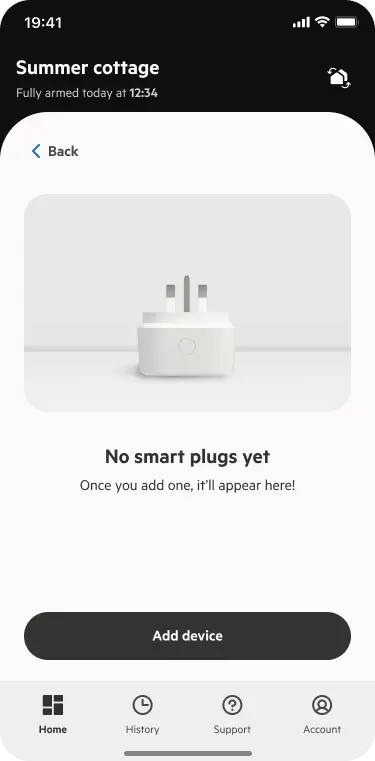
Step 1
Open the PhoneWatch app, go to the section Smart Plugs and tap Add device button.
Choose what you need support with – whether it's plugging it in or pairing it with your system.
Ready to connect your new outdoor Smart Plug? Follow these steps to easily add it to your Smart Alarm system in just a few minutes.
Open the PhoneWatch app, go to the section Smart Plugs and tap Add device button.
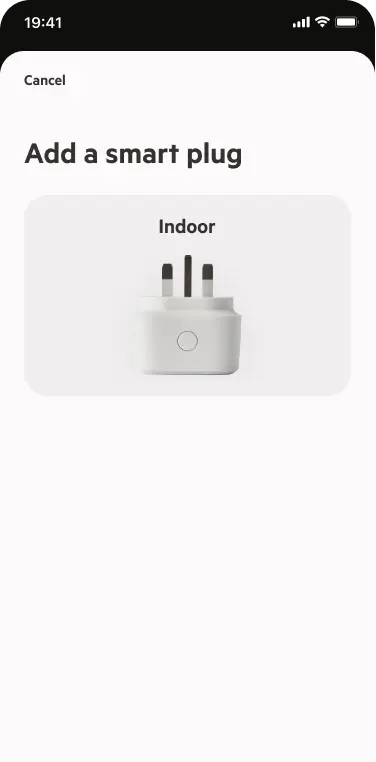
Select Indoor Smart Plug.
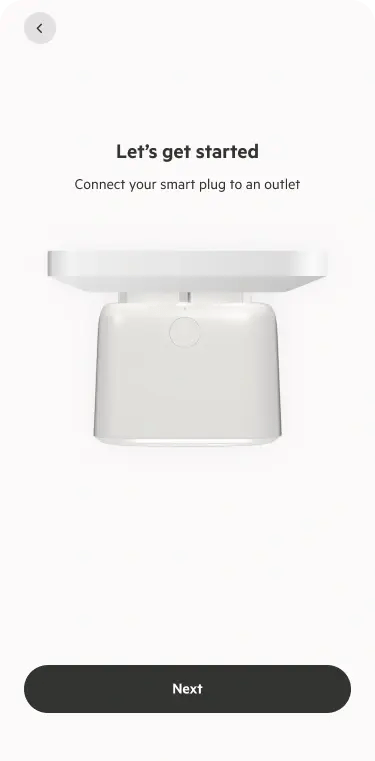
Plug the Smart Plug in the wall socket. The green LED should now blink once per second. If it doesn´t, press the button on the Smart Plug until the red LED starts to blink rapidly. Release the button when the green LED blinks once per second.
In the App, press Next and wait for the Smart Plug to compete the pairing.
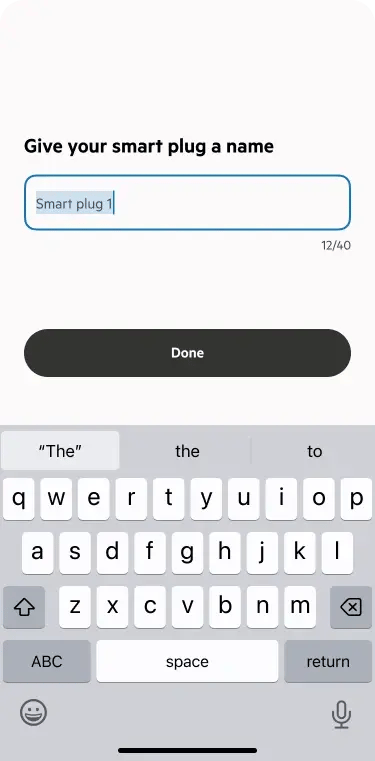
Give your Smart Plug a name
(you can change it later).
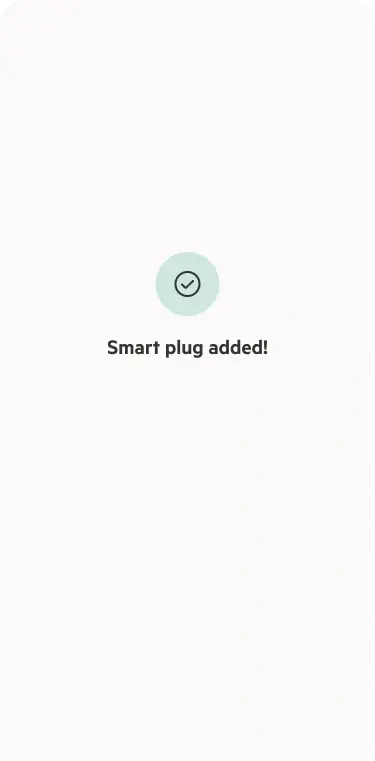
You can now switch the Smart Plug on and off via the app, as well as via the button.
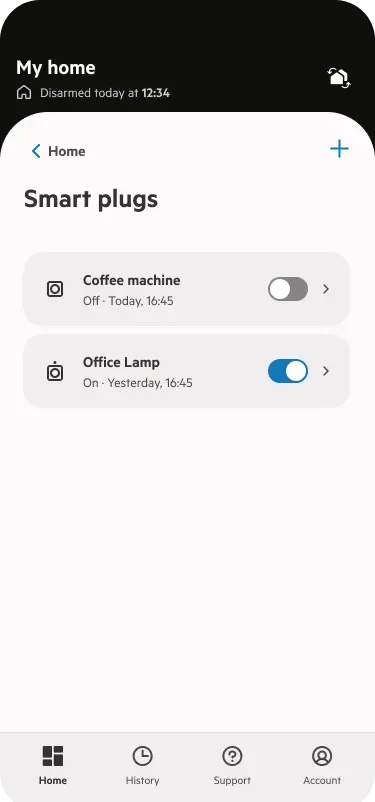
Open the PhoneWatch app, go to the section Smart Plugs and tap Add device button.
Select Indoor Smart Plug.
Plug the Smart Plug in the wall socket. The green LED should now blink once per second. If it doesn´t, press the button on the Smart Plug until the red LED starts to blink rapidly. Release the button when the green LED blinks once per second.
In the App, press Next and wait for the Smart Plug to compete the pairing.
Give your Smart Plug a name
(you can change it later).
You can now switch the Smart Plug on and off via the app, as well as via the button.
Move the smart plug closer to your alarm system’s gateway (within 2–3 meters).
Plug the Smart Plug in the wall socket. The green LED should now blink once per second. If it doesn´t, press the button on the Smart Plug until the red LED starts to blink rapidly. Release the button when the green LED blinks once per second.
In the app, go to Smart Plugs, tap Add device, and follow the instructions.
Not working as expected? We’ll guide you through simple steps to fix common issues with your Smartplug: from connection problems to power errors.
In the PhoneWatch app, go to smartplugs, click on the smartplug that is not working, and tap remove to disconnect it.
While the smart plug is plugged to a wall socket, follow the steps below.
Press and hold the power button until it flashes red.
Keep holding until it starts blinking green.
In the app, go to Smart Plugs, then tap Add device, and follow the instructions to connect the smart plug to your system.
Open or download/update the PhoneWatch app and click on the "Automations" icon on the home screen
Click on "add automation". Select the time and days you want the automation to run. Select the control alarm system button
Choose whether you want your alarm partial armed or disarmed
Click “next” and give your new automation a name.
Click automations
Select the relevant automation and press edit and change any details, such as the time, days, the automation type, and name or else press delete.